Lab Environment
Strigo UI Overview
-
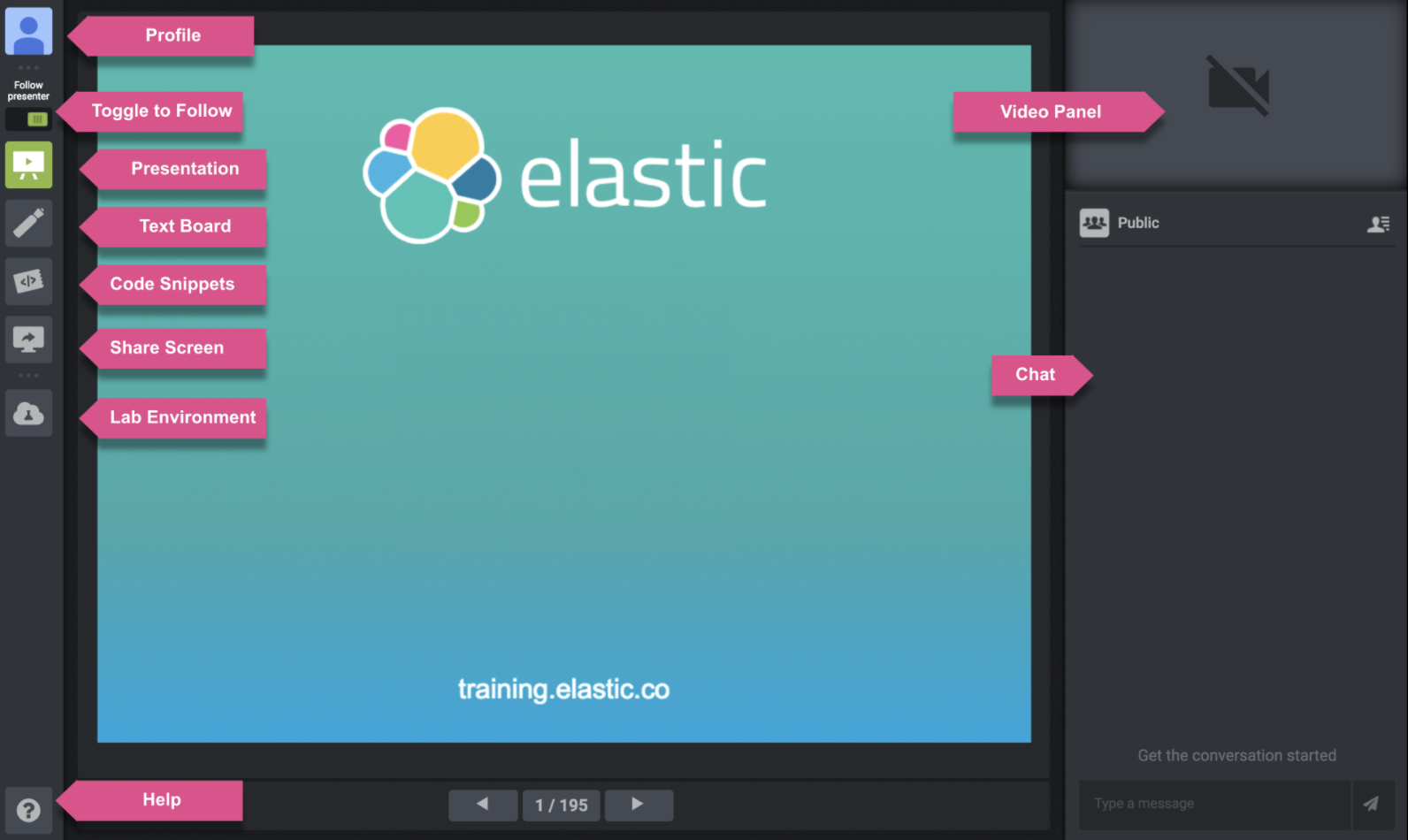
Profile - The profile represents how the instructor and other students see you in the classroom environment, you can change your display name and picture.
-
Toggle to Follow - "Follow Presenter" toggle to sync with the instructor's presentation.
-
Presentation - Presentation with selectable text and clickable links. You can follow the instructor or browse the slides at your own pace.
-
Text Board - A board where the instructor can share textual information.
-
Code Snippets - Code snippets are pieces of code that the instructor can share. You can always view them and use during lab time.
-
Share Screen - View the instructor's lab, full desktop screen or specific applications.
-
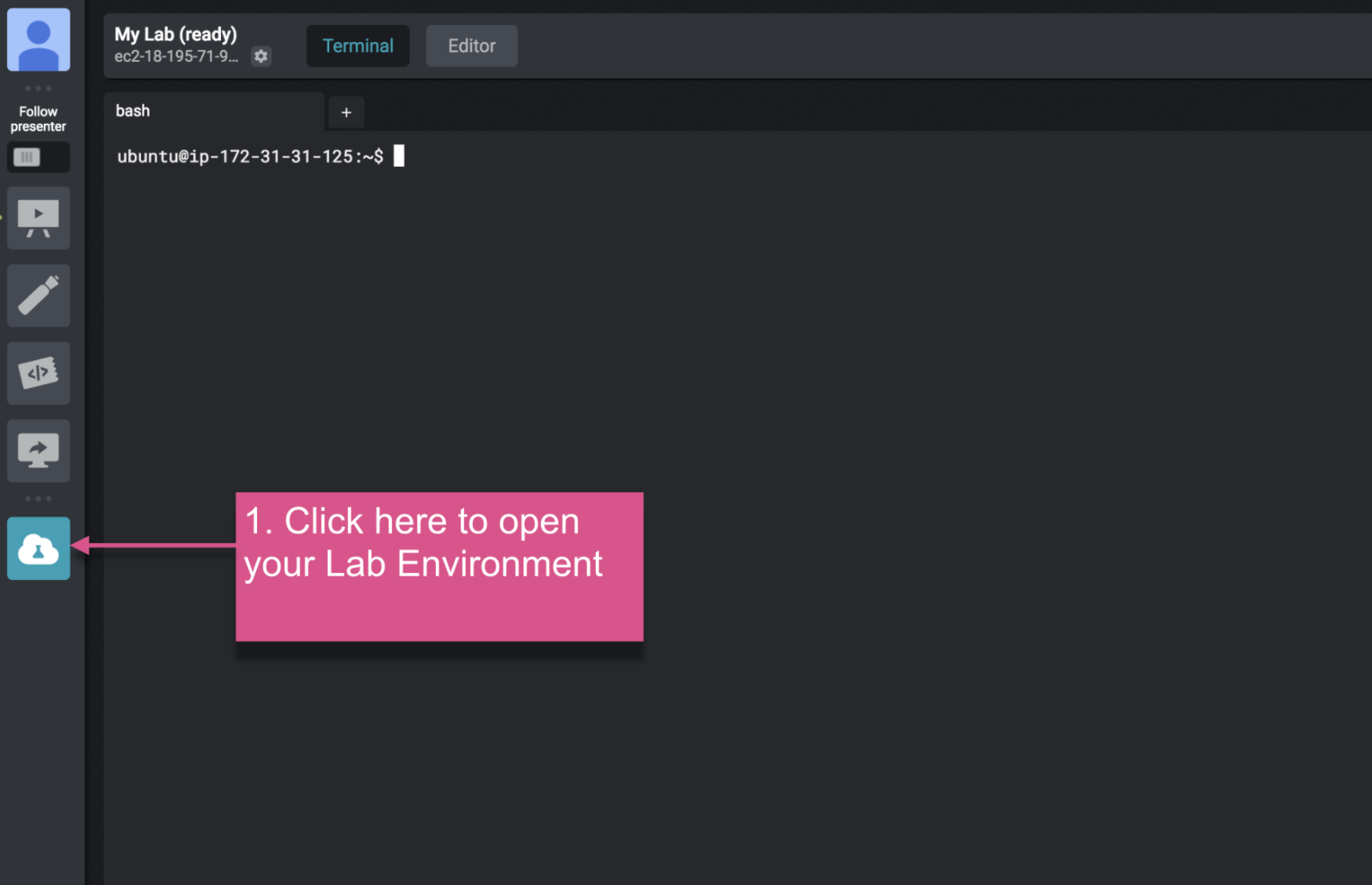
Lab Environment - Hands on practice lab. The lab comes equipped with a terminal and a code editor connected to a cloud server.
-
Help - Click to access available information of the Virtual Classroom.
-
Video Panel - The video stream source is dynamic and depends on the instructor's configuration. It can be the instructor's video feed, a student who asked to speak or a split feed while in a one on one session.
-
Chat - The built-in chat client supports both private and public chat rooms. Use it to communicate with the instructor and other students.
Note:
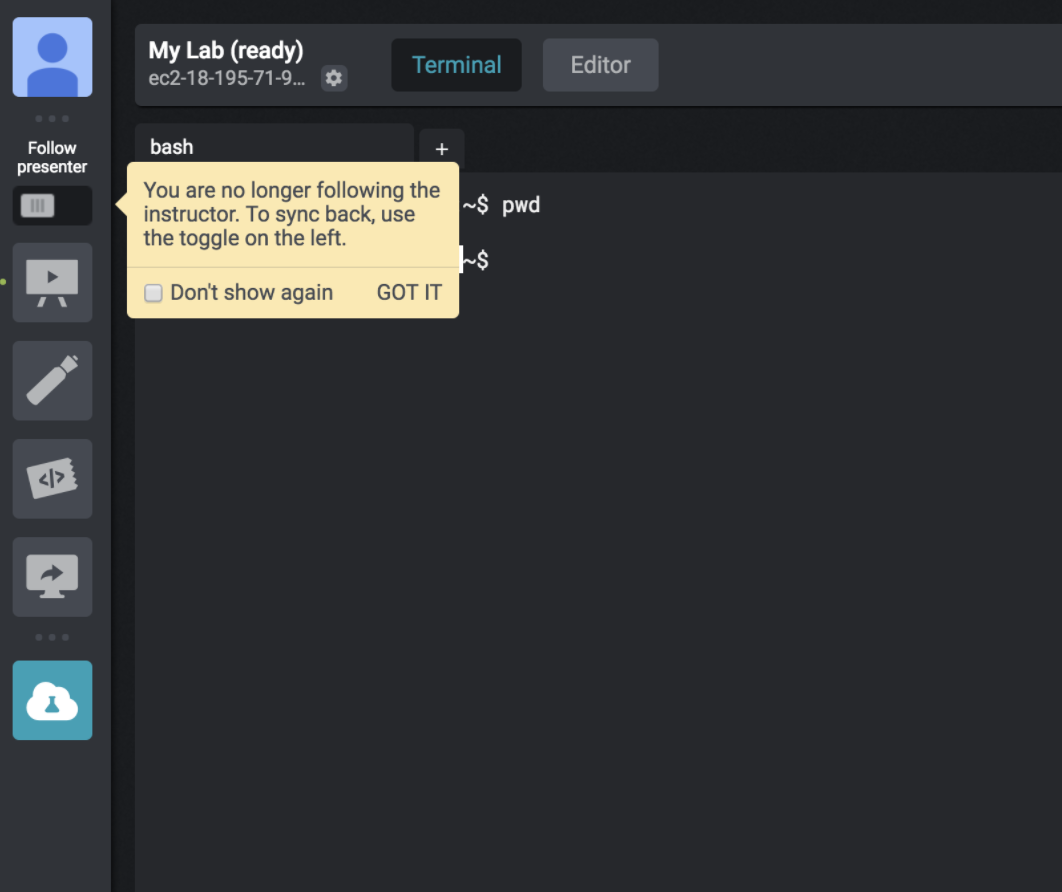
When you are not following the instructor's presentation (often happens when you change to another area of the course) a sign will be displayed. In order to continue to follow the presentation just toggle the switch.
Chat Tips
-
Both public and private chat is available in the virtual classroom. Start a chat or view messages with the following steps:
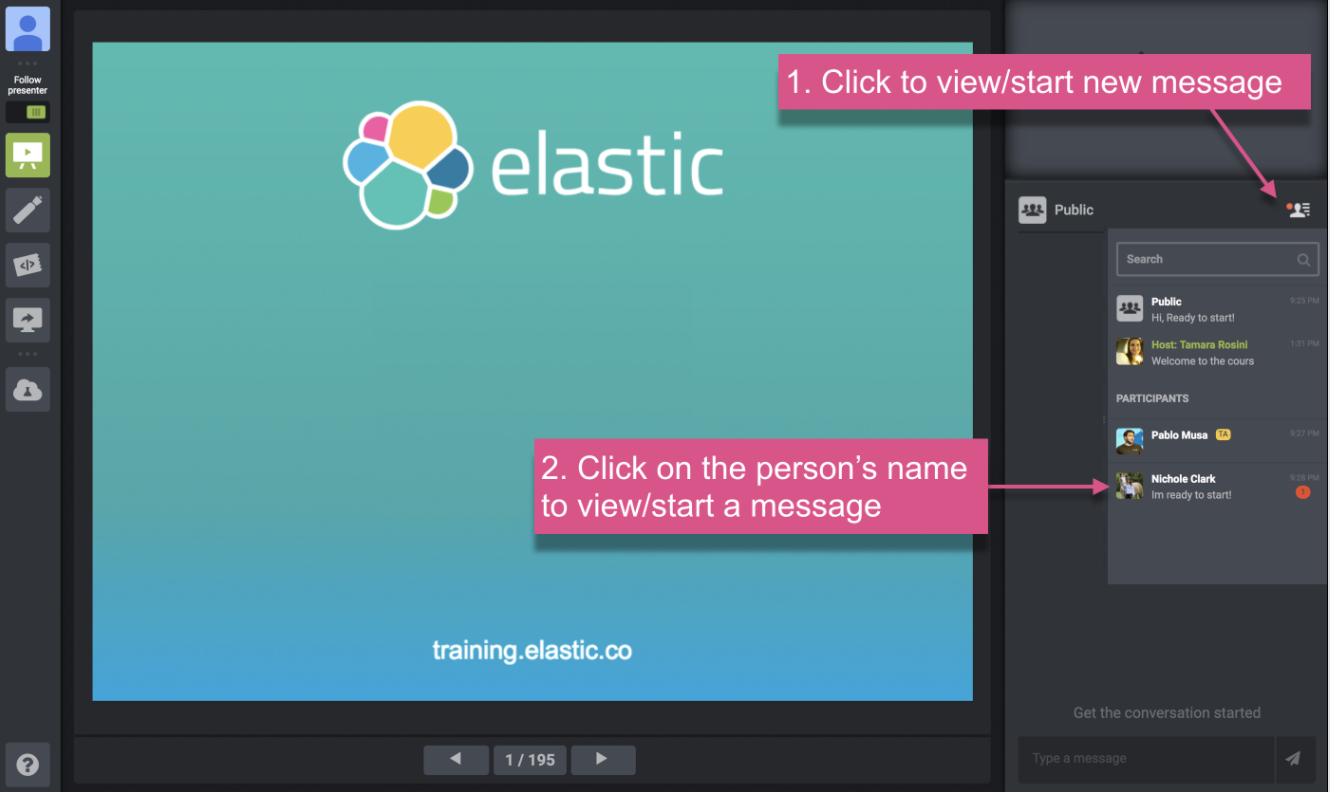
- Click on the icon of a person, located on the top right under the video panel
- Click on "Public" for public chat or on the name of the person
-
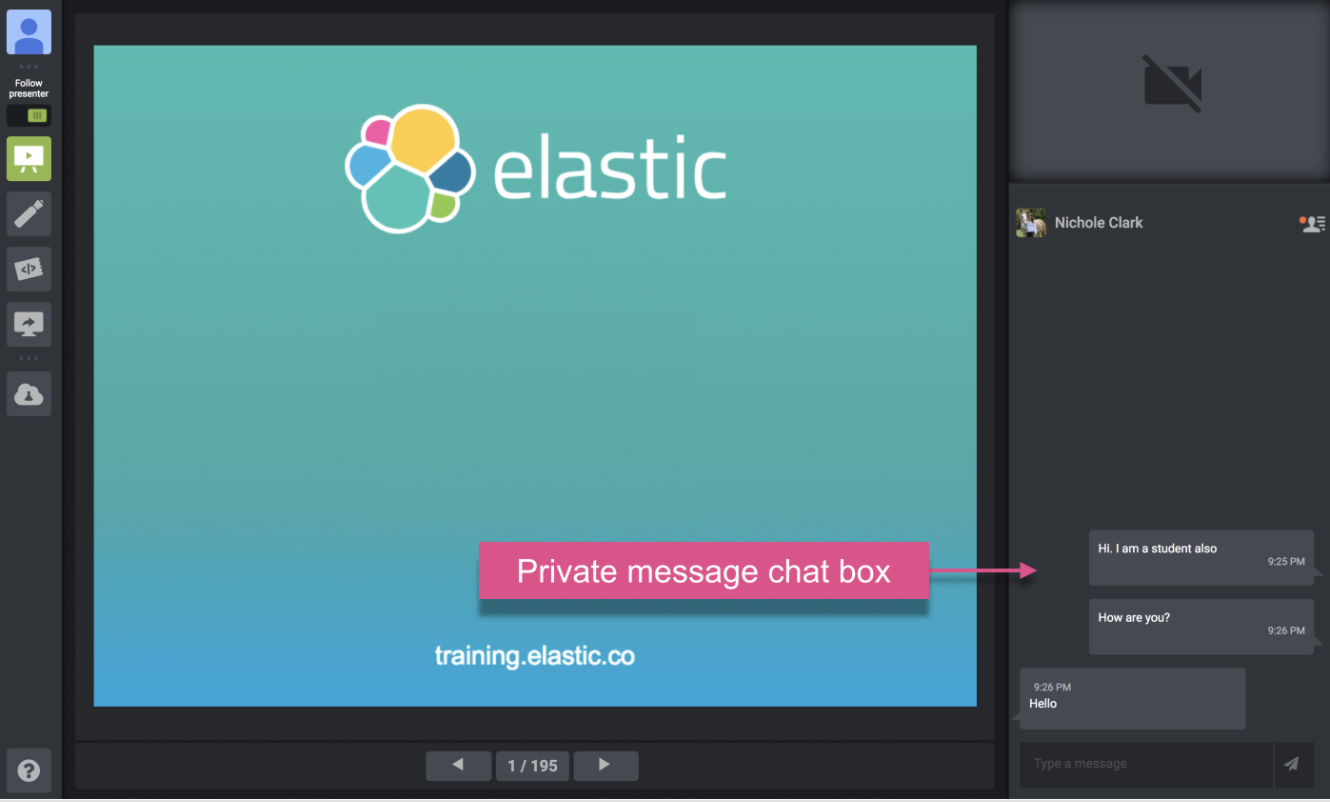
When you are in the private chat, the name of the person will show in the top left of the chat box.
-
Let's talk classrom (public) chat best practices. Our instructors ask that students use the following characters for better feedback:
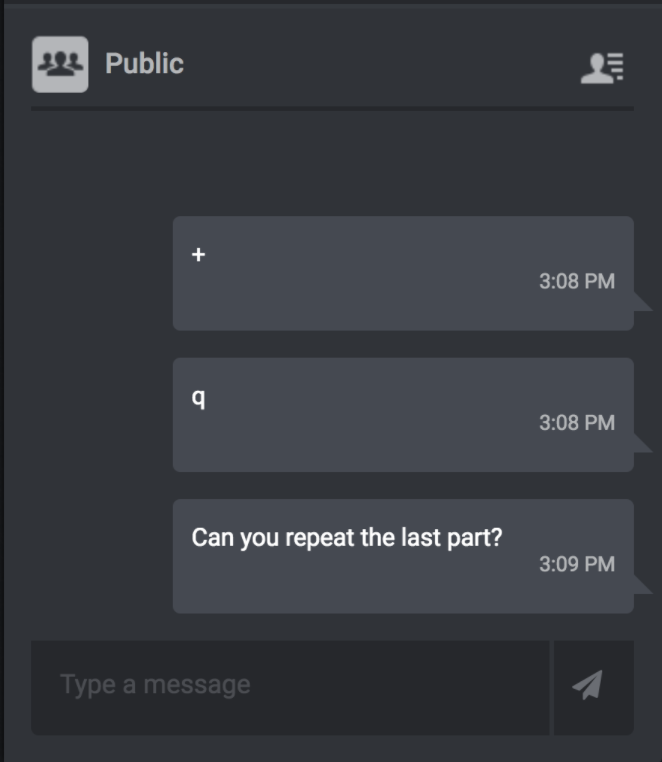
- + - Indicate that you are tracking / agreeing with your instructor
- q - Type a "
q" before a question to indicate you have a question
Lab Environment
The lab environment is an Ubuntu Linux virtual machine.
Accessing the Lab Environment
- Click on the "My Lab" button
Lab Instructor Help
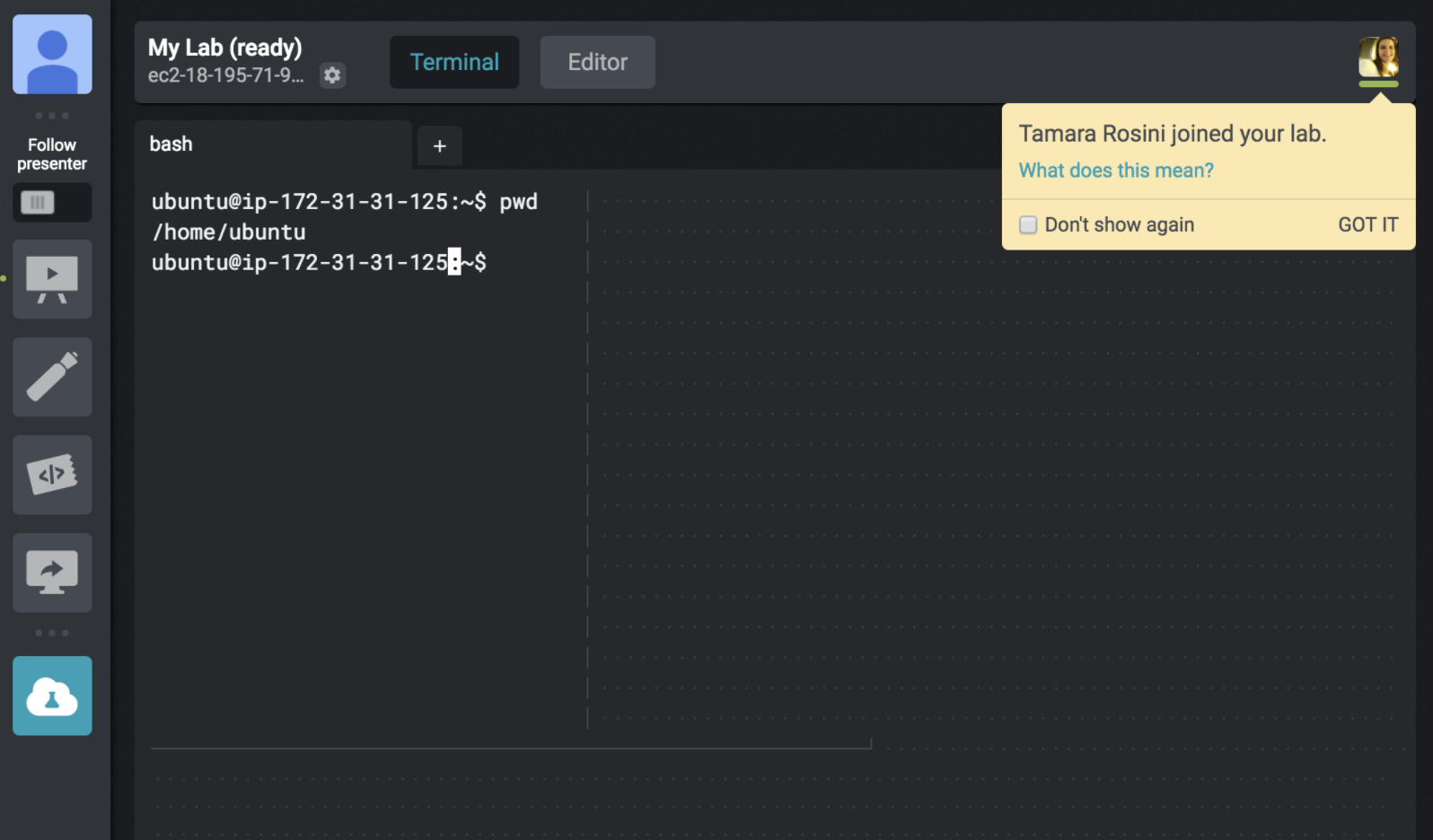
In the event any assistance is needed during the course, you can request assistance and work side by side with an instructor. When an instructor is connected to your lab session, you will see the following sign:
Home Directory
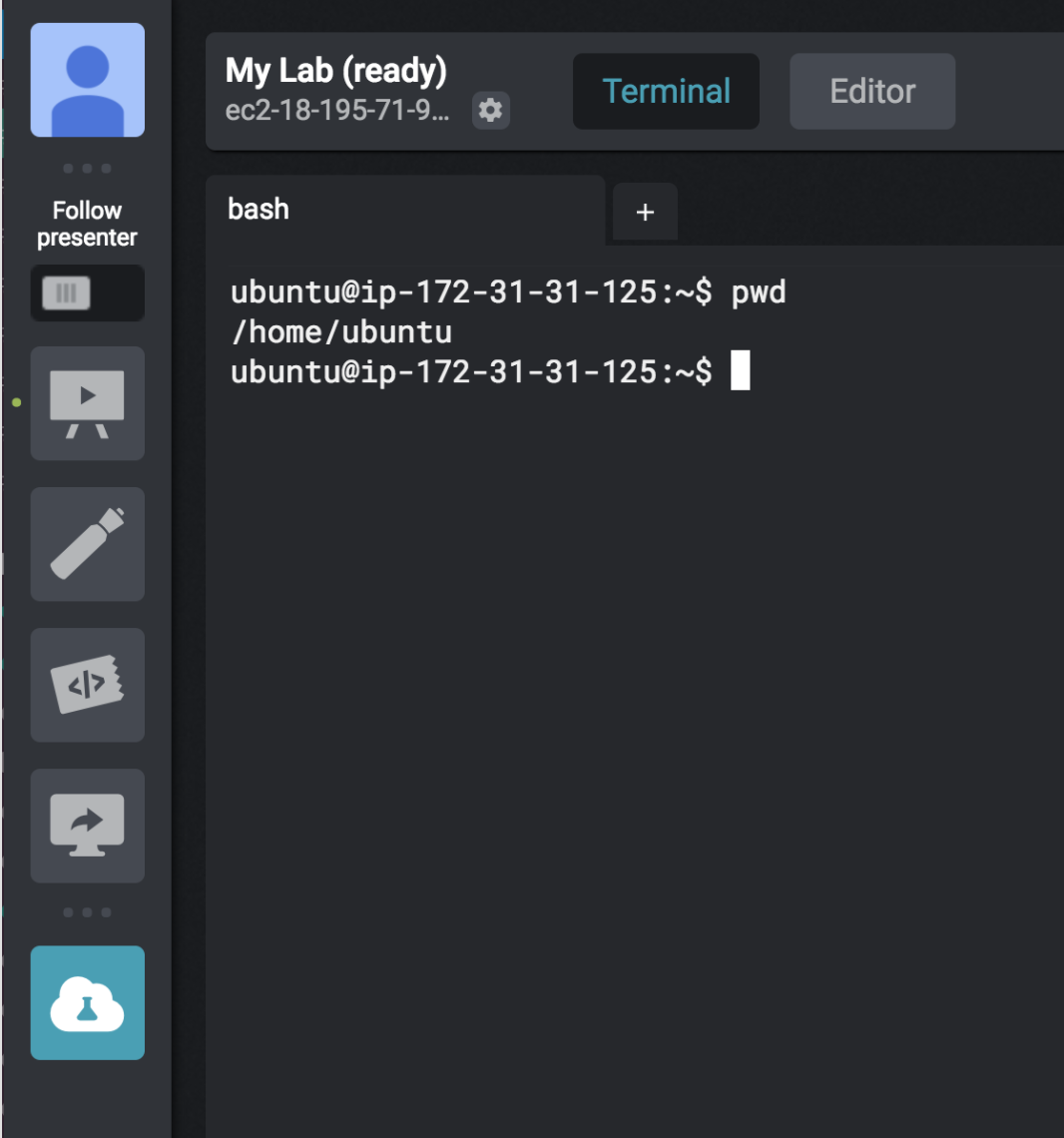
Your files are located under your home directory or "~". You can easily change back
to your "home" at any time by executing the command "cd" in the terminal.
Open a New Terminal Tab
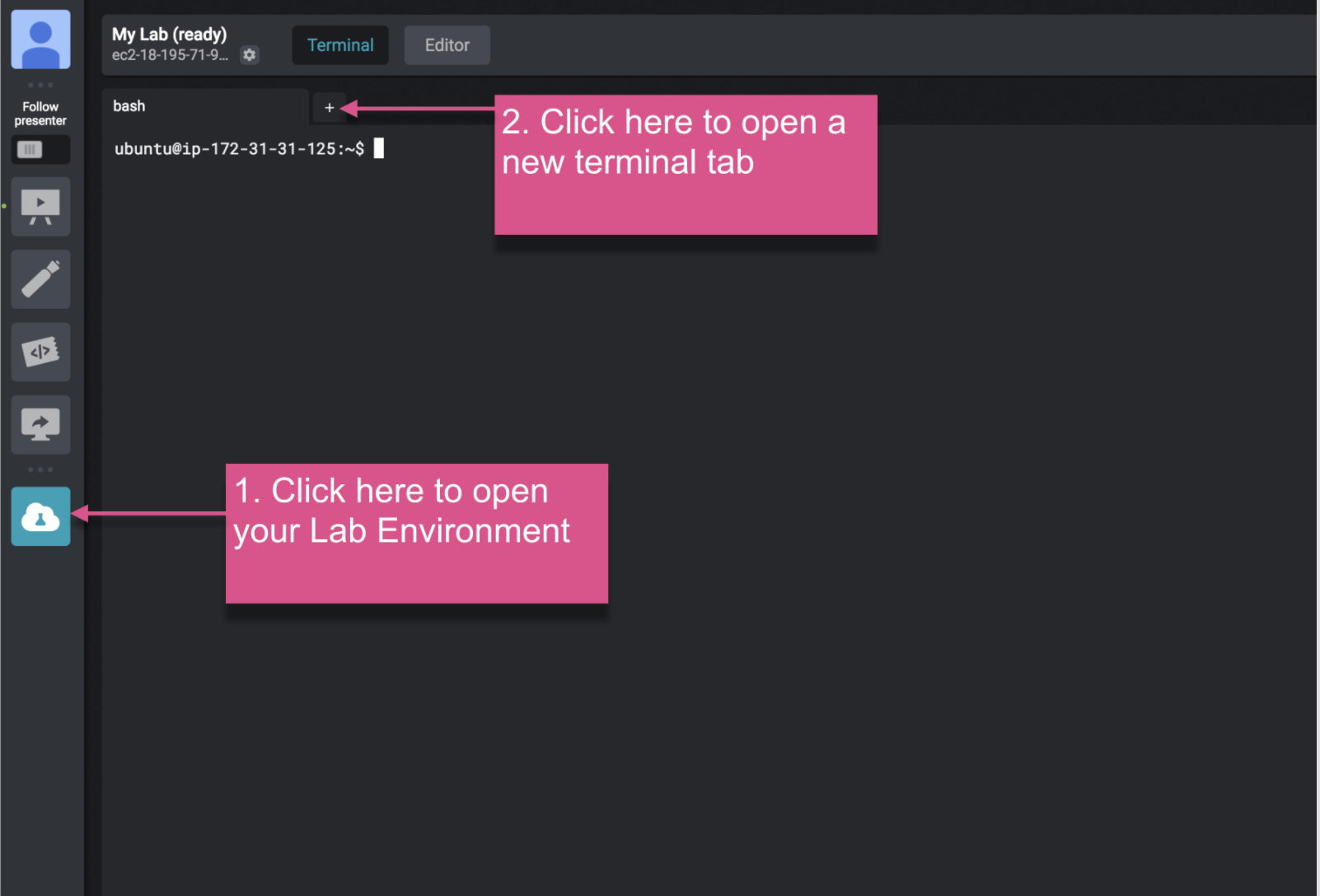
- Click on the "My Lab" button.
- Click on "+" sign.
File Editor
To manage files, you can use standard editors like "nano" and "vim" within the provided terminal,
but another option provided is the embedded file editor within the Virtual Classroom.
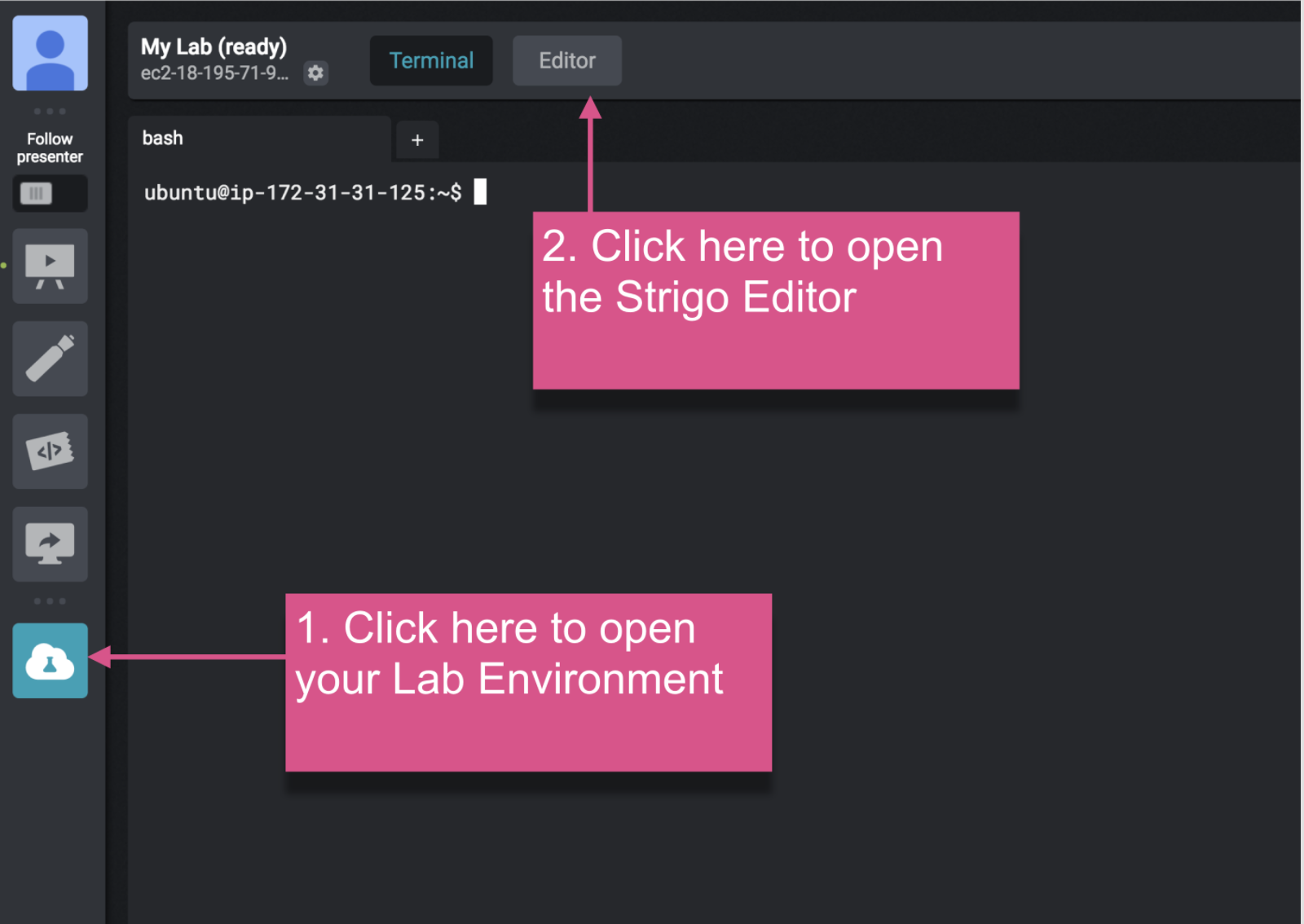
Opening the Editor
- Click on the "My Lab" button.
- Click on "Editor" button, located in the top of the page.
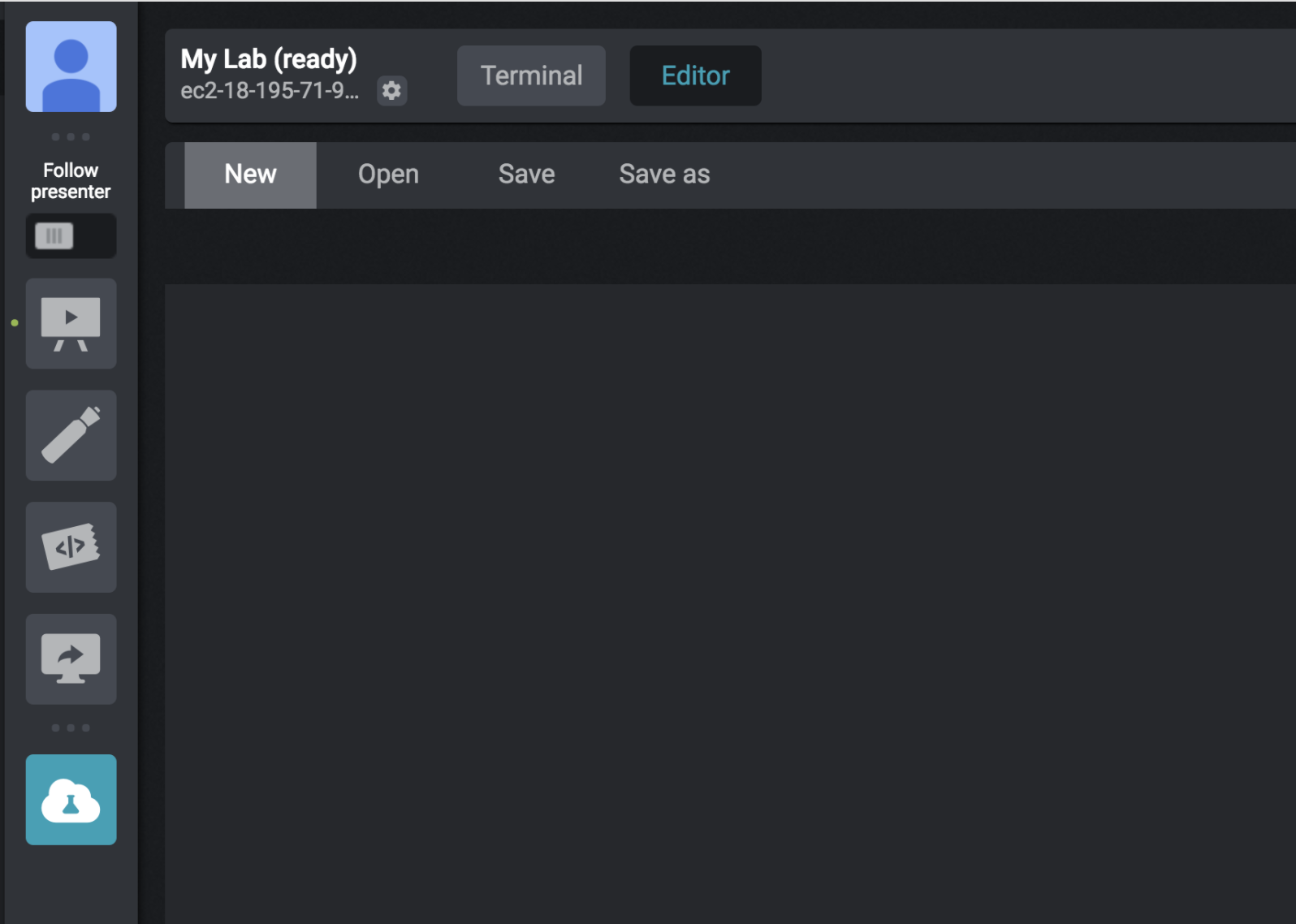
Editor UI
- New - Open a new tab with a file.
- Open - Open a file (default directory is the root).
- Save - Save the file.
- Save as - Save the current file with a new name/location.
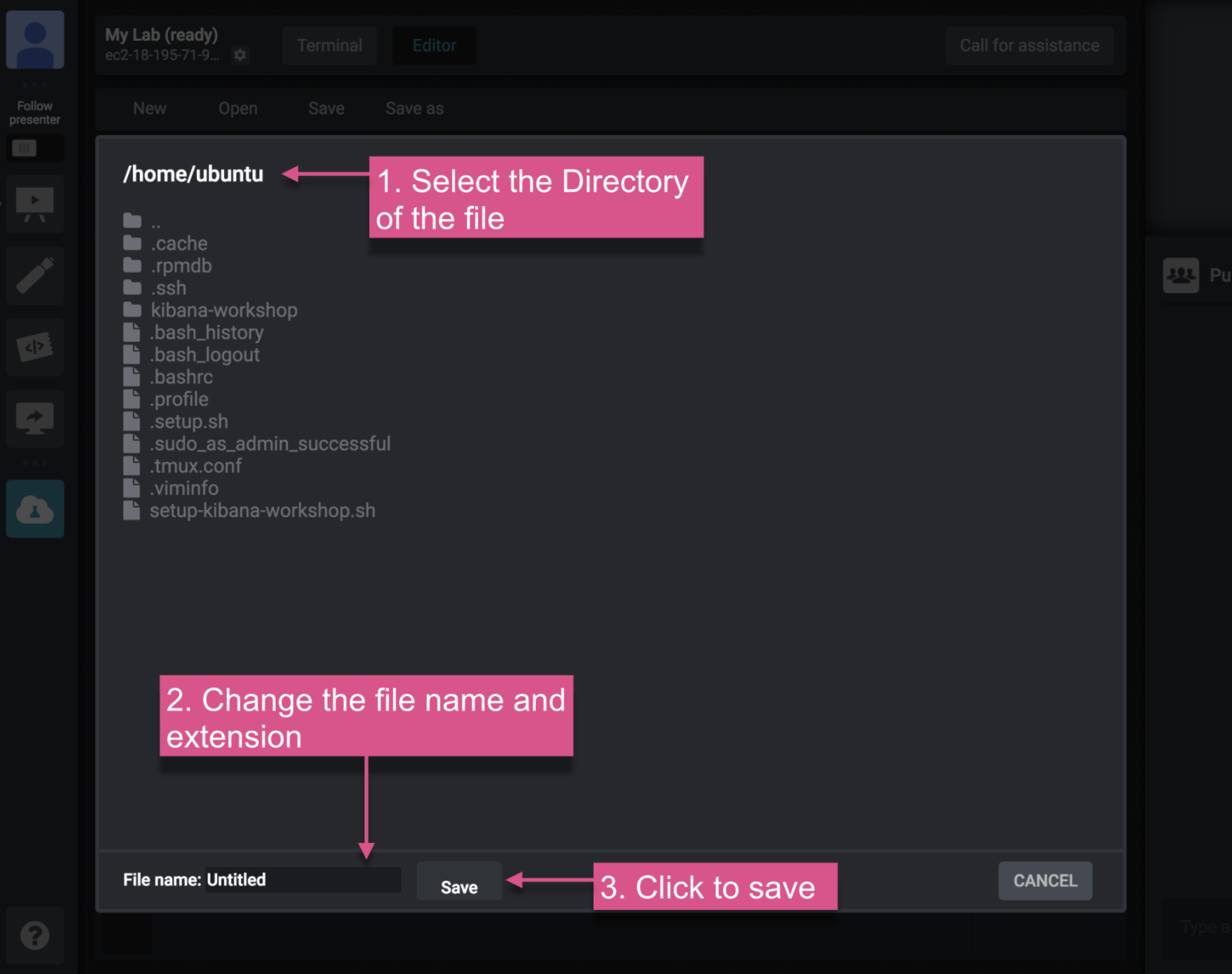
Saving a File
After clicking "Save" (located on the top) a dialog will open:
- Select the directory where the file will be saved (default directory is the root).
- Change the file name and the extension.
- Click on "Save".
Opening Kibana
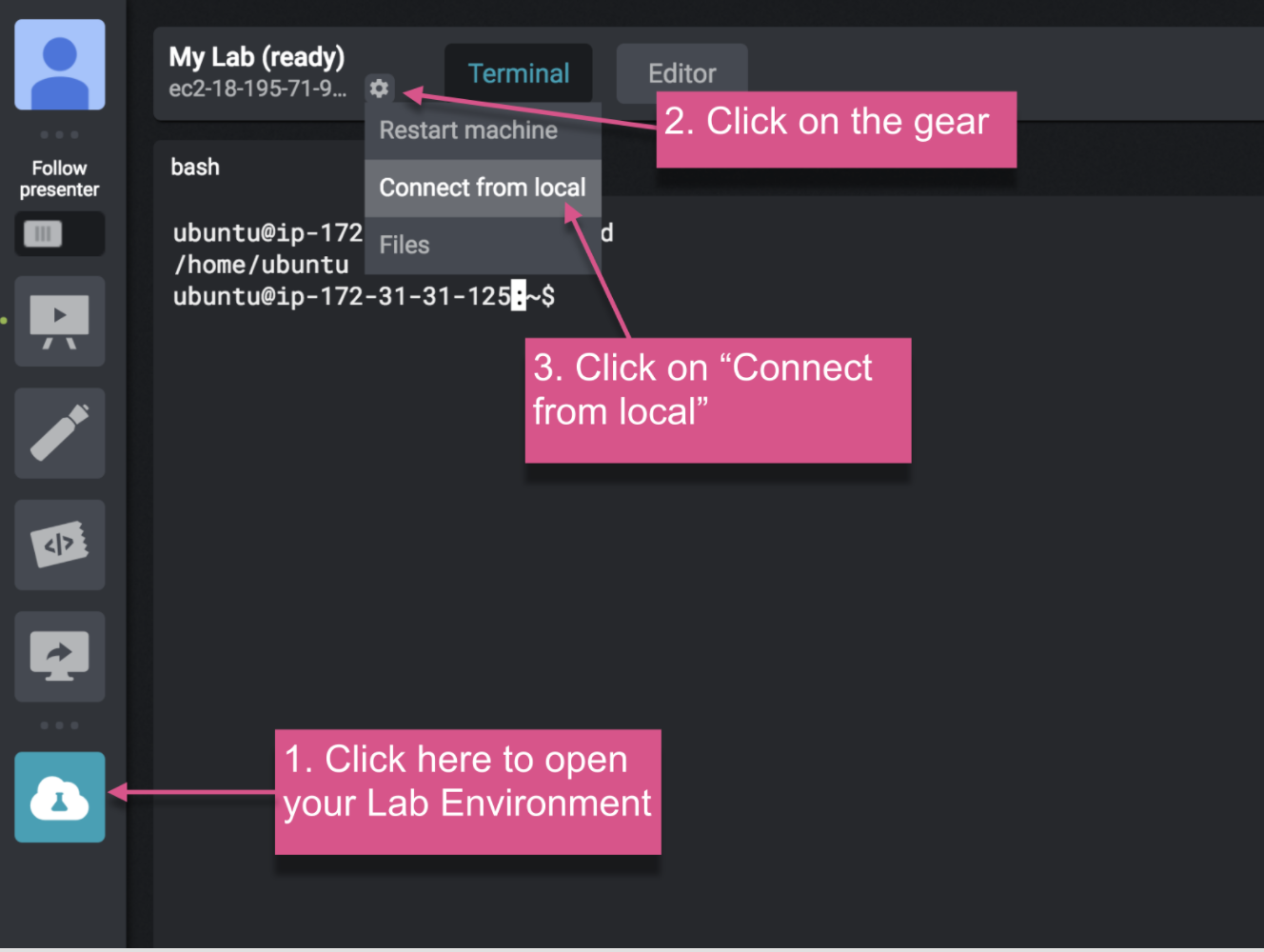
- Open the Lab Environment.
- Click on the gear, located on the top left next to your profile picture.
- Select "Connect from Local" from the menu list.
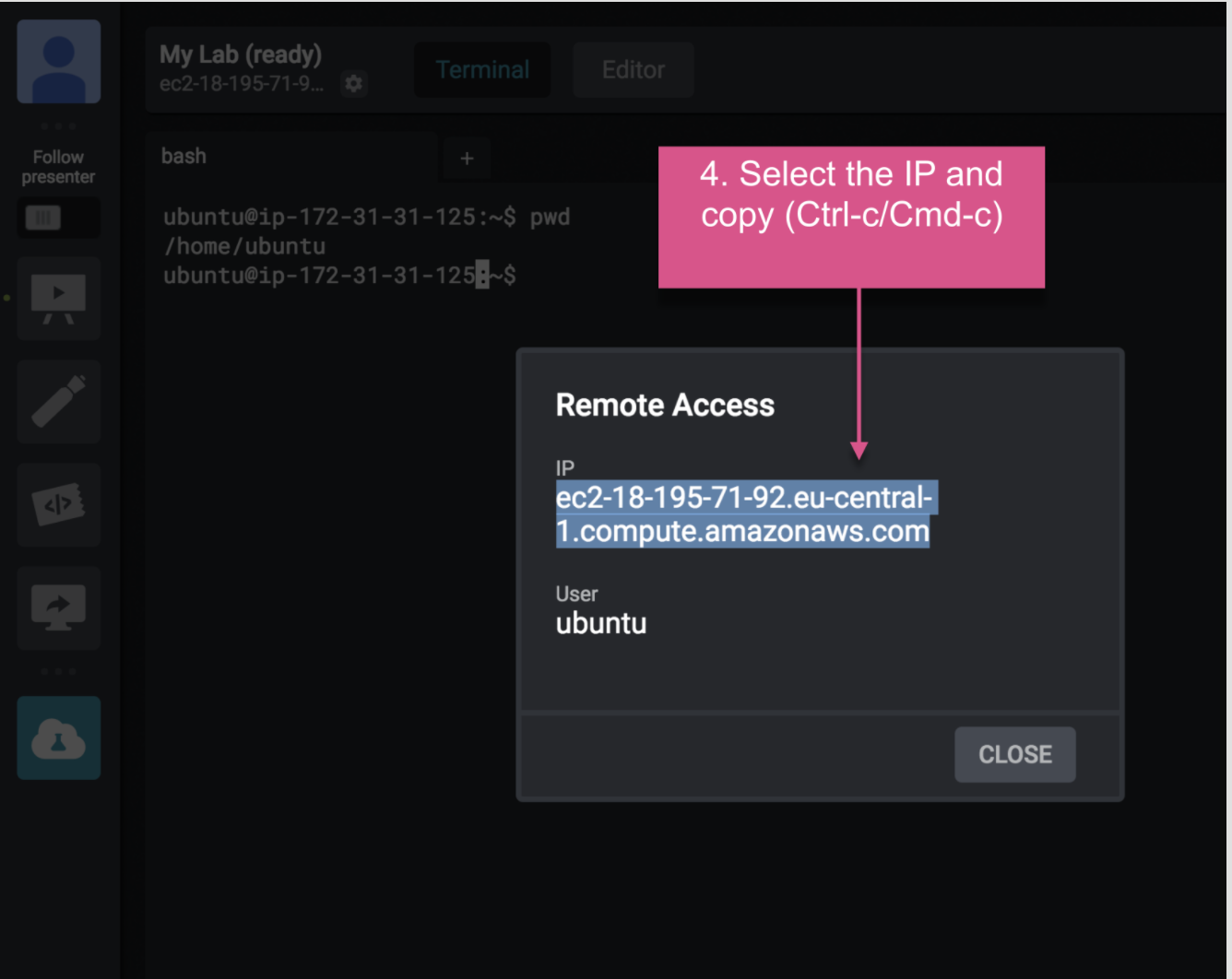
- Copy ( Ctrl / Cmd+c ) the IP from the "Remote Access" panel.
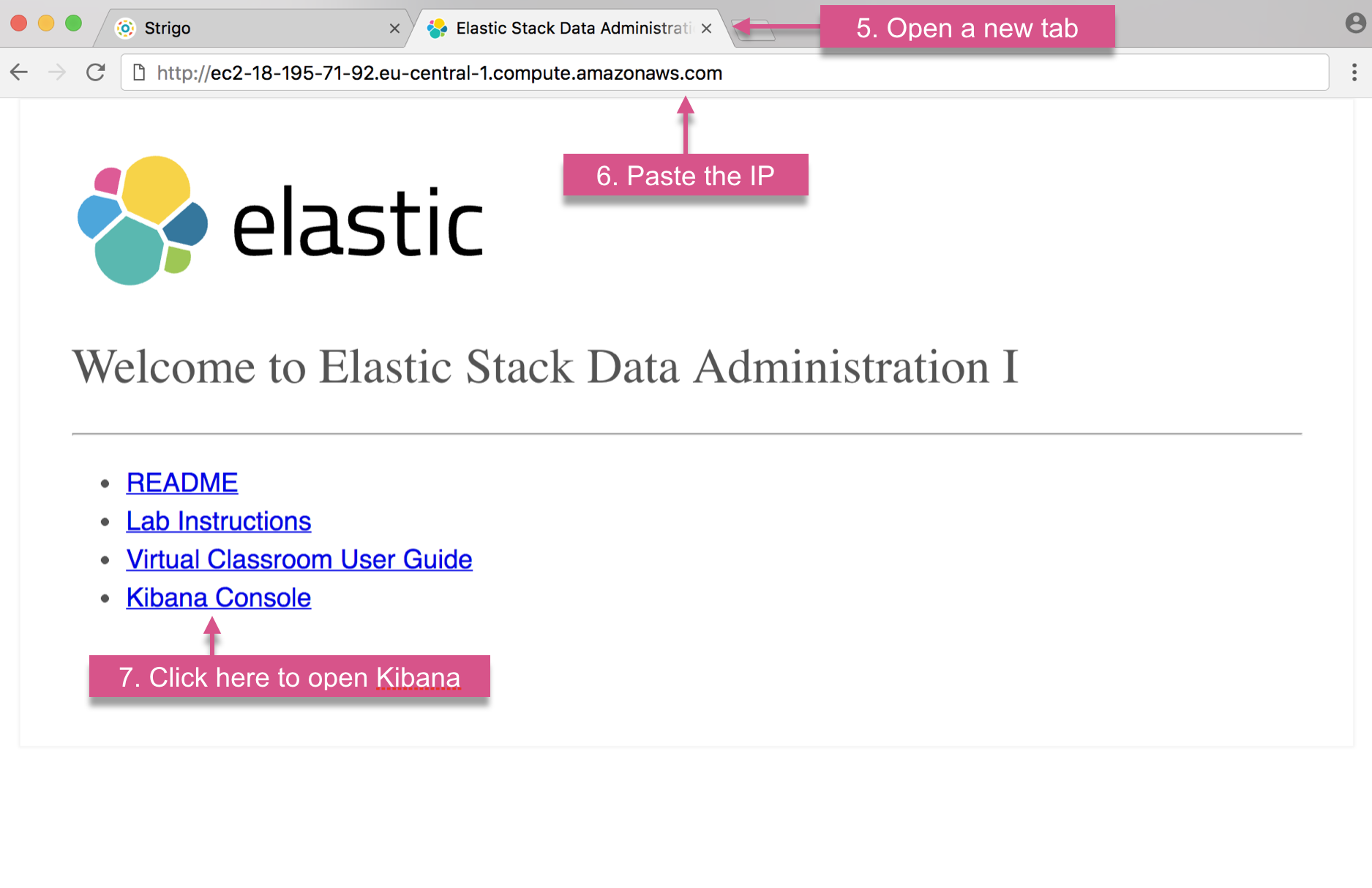
- Open a new tab on your browser.
- In the new tab address bar, paste the IP that you copied.
- Click on the Kibana link to open it.
NOTE:
Optionally, you can copy the IPv4 address by double clicking the address under "My Lab" and copying ( Ctrl / Cmd+c ).